Live and Mirroring
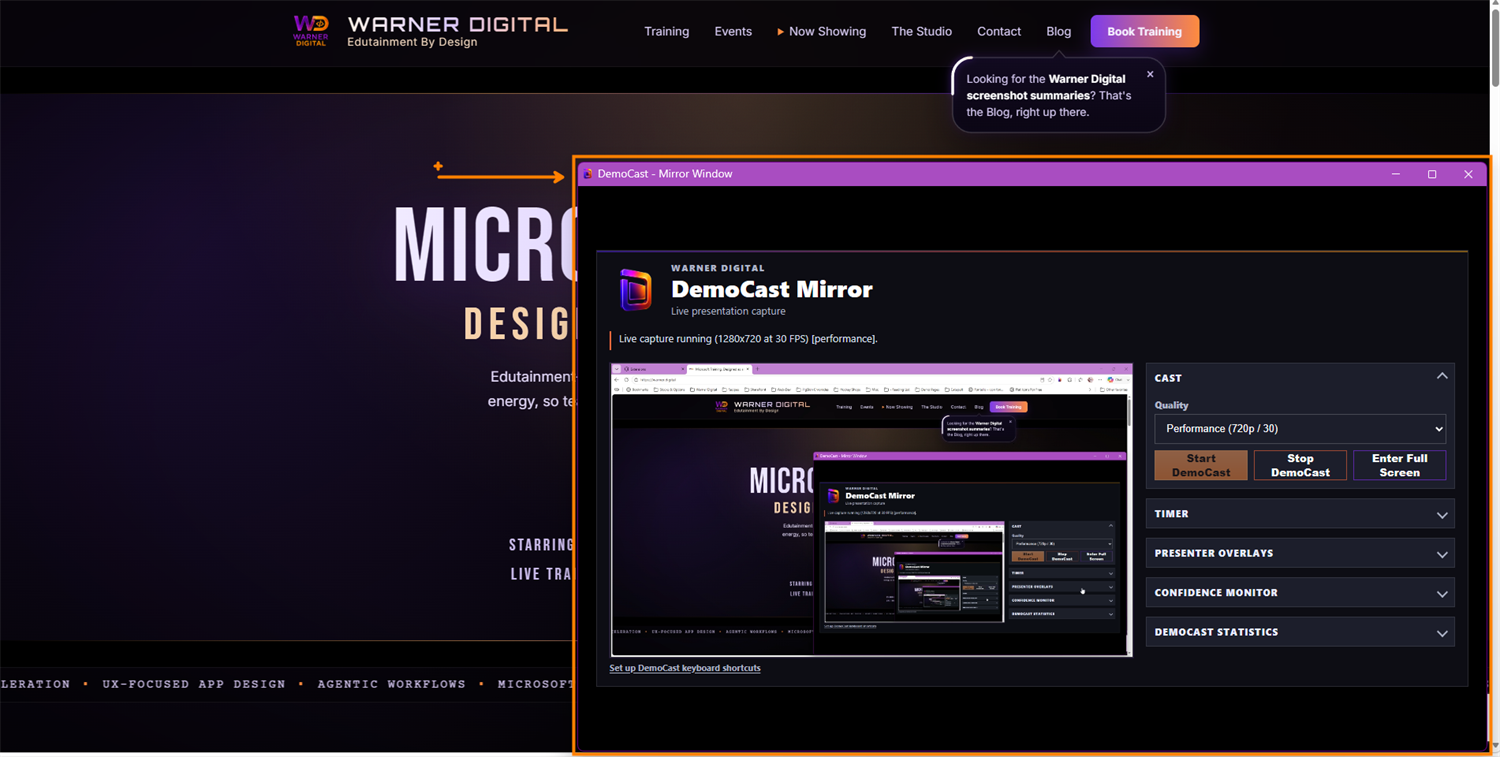
The mirror window running a real capture at 720p, framing exactly what the audience sees while your own screen stays private.
Cue the demo without losing the room. Slides look best in extended mode, demos play best in duplicate, and flipping between them resets the whole screen. DemoCast gives you a dedicated mirror window, so you frame exactly what the audience sees. No mode-switching, no resolution-refactoring, no lost momentum.
Built for conference speakers, technical trainers, consultants, and anyone running a live demo.
Every live demo runs into the same display problem. Here is what it is, and how DemoCast gets around it.
Presenting from a laptop usually forces a choice between two display modes, and neither one is right for a whole session. Extended mode is great for slides: your notes and presenter view stay on your screen while the audience sees only the deck. But the moment you drop into a live demo, extended works against you, because you are now looking at a different screen than the room and constantly glancing away. Duplicate mode fixes that by mirroring everything, except now your private notes, tabs, and messages are on the projector too.
The instinct is to switch modes mid-session, and that is where it falls apart. Toggling between extended and duplicate makes the operating system renegotiate the displays: resolutions change, windows jump to new positions and resize, apps redraw, and the layout you carefully arranged scatters. It costs a few awkward seconds every time, the audience watches your desktop flail, and you lose the thread of what you were saying.
DemoCast removes the switch entirely. Instead of reconfiguring your displays, you run a single mirror window that shows only what you choose: a screen, a browser tab, or an application window, captured locally in the browser. You put that one window on the audience output and leave your own screen exactly how you like it. Slides, demos, and everything in between now live in the same stable setup, so nothing resets when you move from talking to building.
Around that mirror, DemoCast adds the controls you reach for while presenting.
A closer look at the mirror window, the toolbar popup, and the confidence monitor.
The mirror window running a real capture at 720p, framing exactly what the audience sees while your own screen stays private.
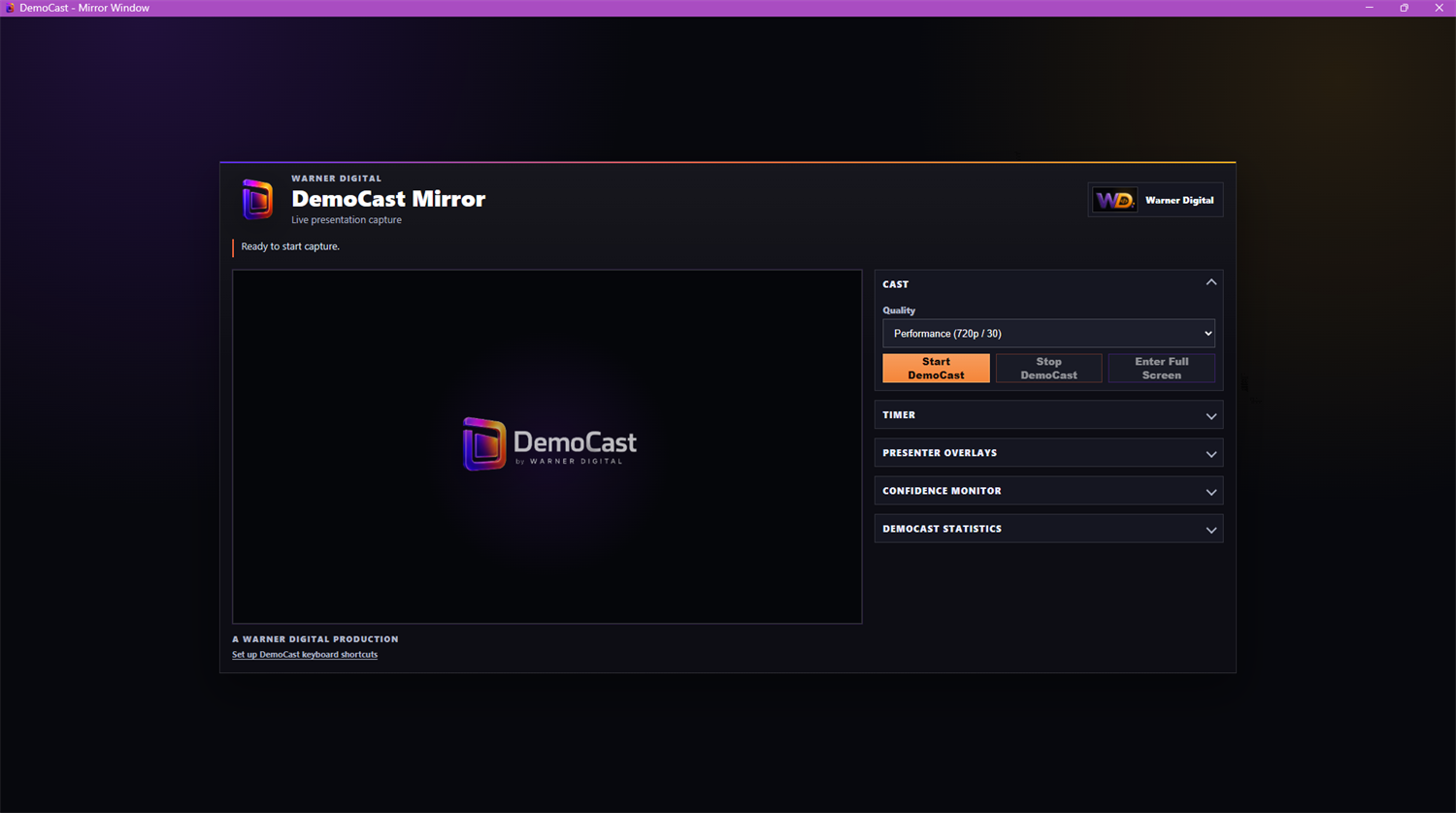
Cast quality, timer, presenter overlays, confidence monitor, and live stats, all in one window.
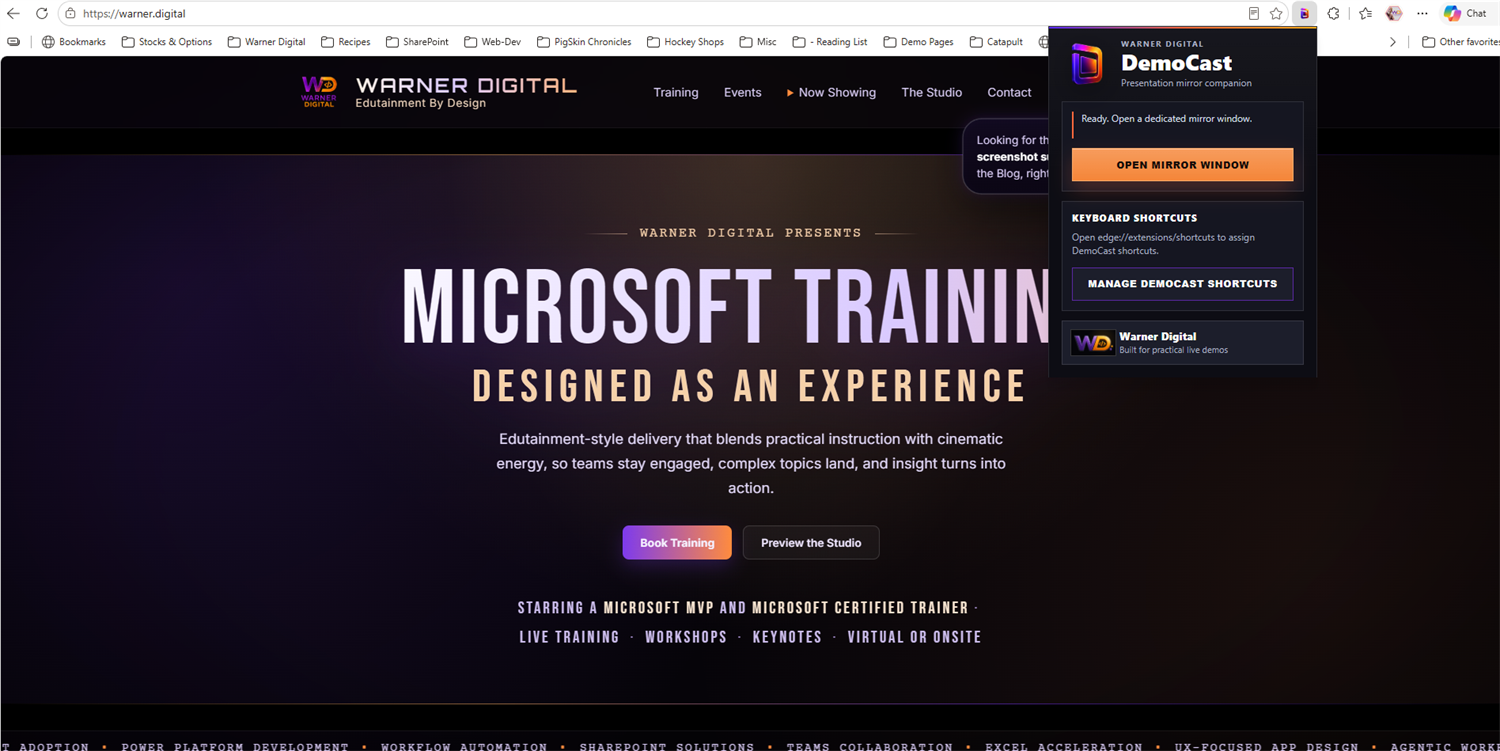
Open the mirror straight from the toolbar popup, or wire it to a keyboard shortcut.
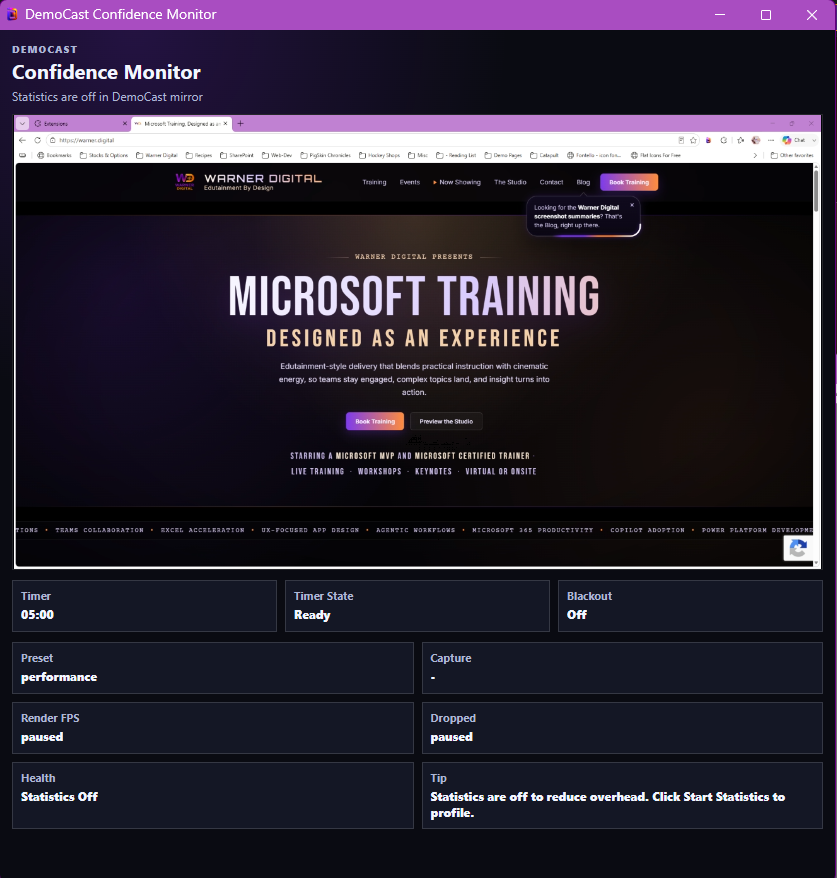
Pops out on your screen only. A live preview of what the room sees, plus timer, blackout state, capture health, and dropped-frame stats, so you always know how the demo is landing.
DemoCast does not collect personal data, browsing history, screen contents, or keystrokes. Screen capture is handled locally by the browser, and settings live in browser extension storage so the extension can do its job and nothing more.